> ## Documentation Index
> Fetch the complete documentation index at: https://docs.kikimora.io/llms.txt
> Use this file to discover all available pages before exploring further.
# Creating a web application
> Work through the four-step setup wizard, including target scope, scan configuration, inline auth record creation, and every field validation message.
A web application must exist before you can run a web security scan against it. The setup wizard at `/web-applications/new` takes four steps.
Completed steps stay clickable in the progress bar at the top, so you can jump back to an earlier step without losing what you have entered.
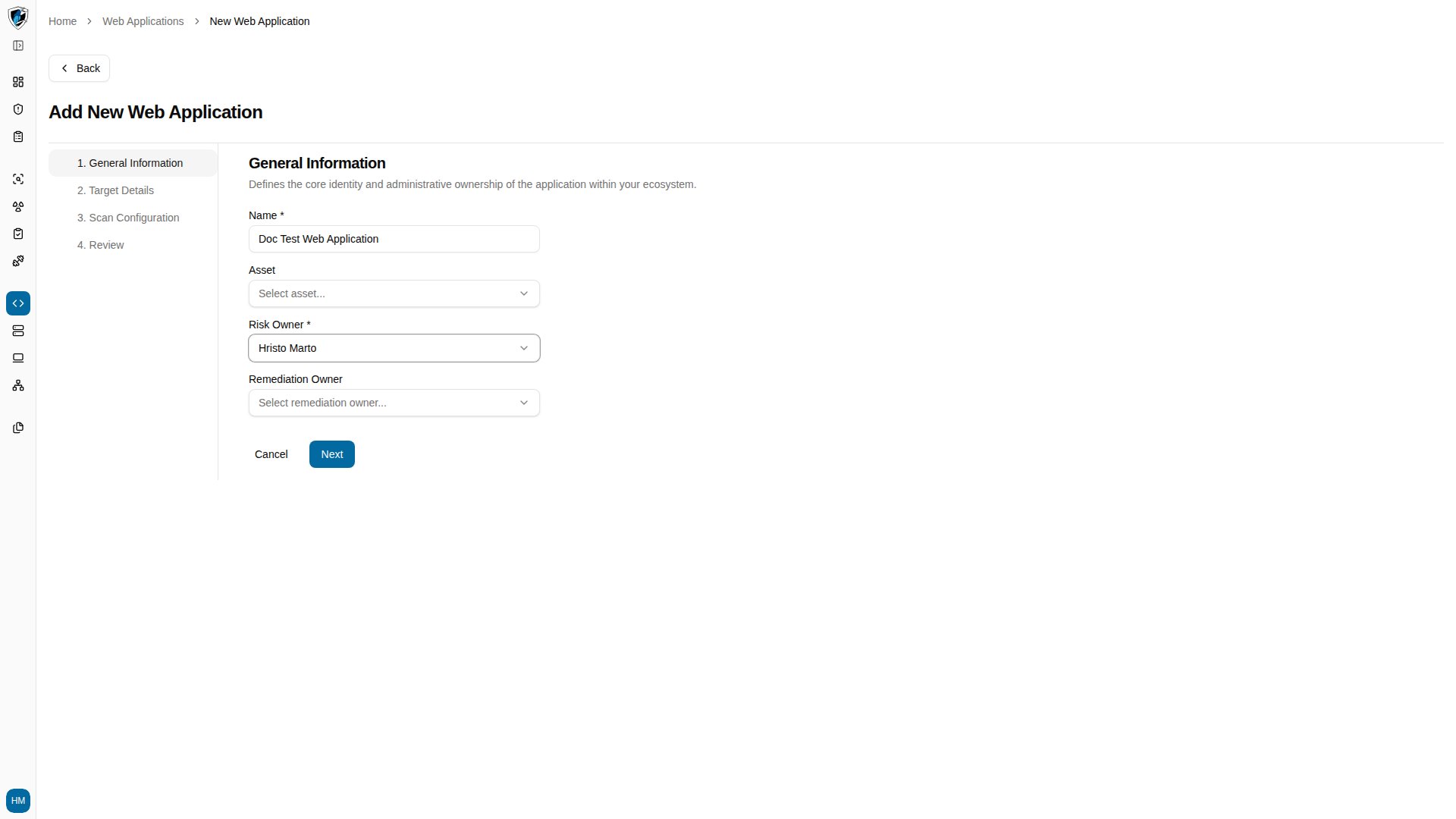
## Step 1: General information
1. Go to `/web-applications` and click **Add new**.
2. Fill in the fields:
| Field | Required | Notes |
| :-------------------- | :------- | :------------------------------------------------------------------------------------------------------ |
| **Name** | Yes | Unique display name for the target. Empty submit returns `Name is required`. |
| **Asset** | No | Associated infrastructure asset or host grouping. |
| **Risk Owner** | Yes | Person accountable for this application's security risk. Empty submit returns `Risk Owner is required`. |
| **Remediation Owner** | No | Person assigned to remediate findings. |
 ## Step 2: Target details
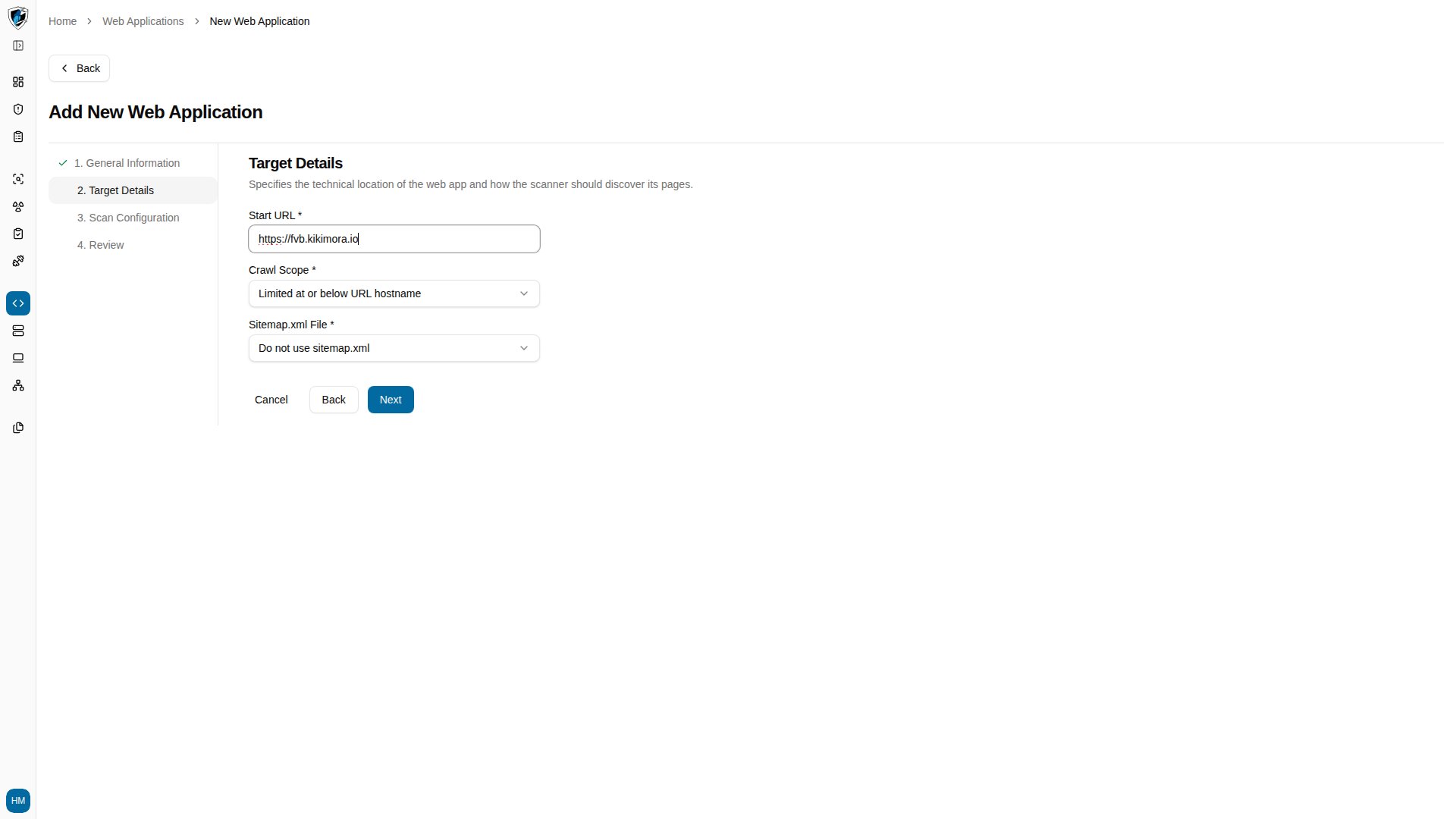
Click **Next**, then configure how the scanner reaches and crawls the application:
| Field | Required | Notes |
| :-------------- | :------- | :------------------------------------------------------------------------------------------------------------------------------------------------------------------------------------- |
| **Start URL** | Yes | The scanner's entry point. Must start with `http://` or `https://`. Empty submit returns `Start URL is required`; a malformed value returns `URL must start with http:// or https://`. |
| **Crawl Scope** | Yes | How far the scanner follows links — for example *Limited at or below URL hostname*. Empty submit returns `Crawl Scope is required`. |
| **Sitemap** | Yes | Whether to upload or parse `sitemap.xml`. Empty submit returns `Sitemap is required`. |
If the start URL points at an unverified domain, a domain verification dialog prompts you to prove ownership before continuing.
## Step 2: Target details
Click **Next**, then configure how the scanner reaches and crawls the application:
| Field | Required | Notes |
| :-------------- | :------- | :------------------------------------------------------------------------------------------------------------------------------------------------------------------------------------- |
| **Start URL** | Yes | The scanner's entry point. Must start with `http://` or `https://`. Empty submit returns `Start URL is required`; a malformed value returns `URL must start with http:// or https://`. |
| **Crawl Scope** | Yes | How far the scanner follows links — for example *Limited at or below URL hostname*. Empty submit returns `Crawl Scope is required`. |
| **Sitemap** | Yes | Whether to upload or parse `sitemap.xml`. Empty submit returns `Sitemap is required`. |
If the start URL points at an unverified domain, a domain verification dialog prompts you to prove ownership before continuing.
 ## Step 3: Scan configuration
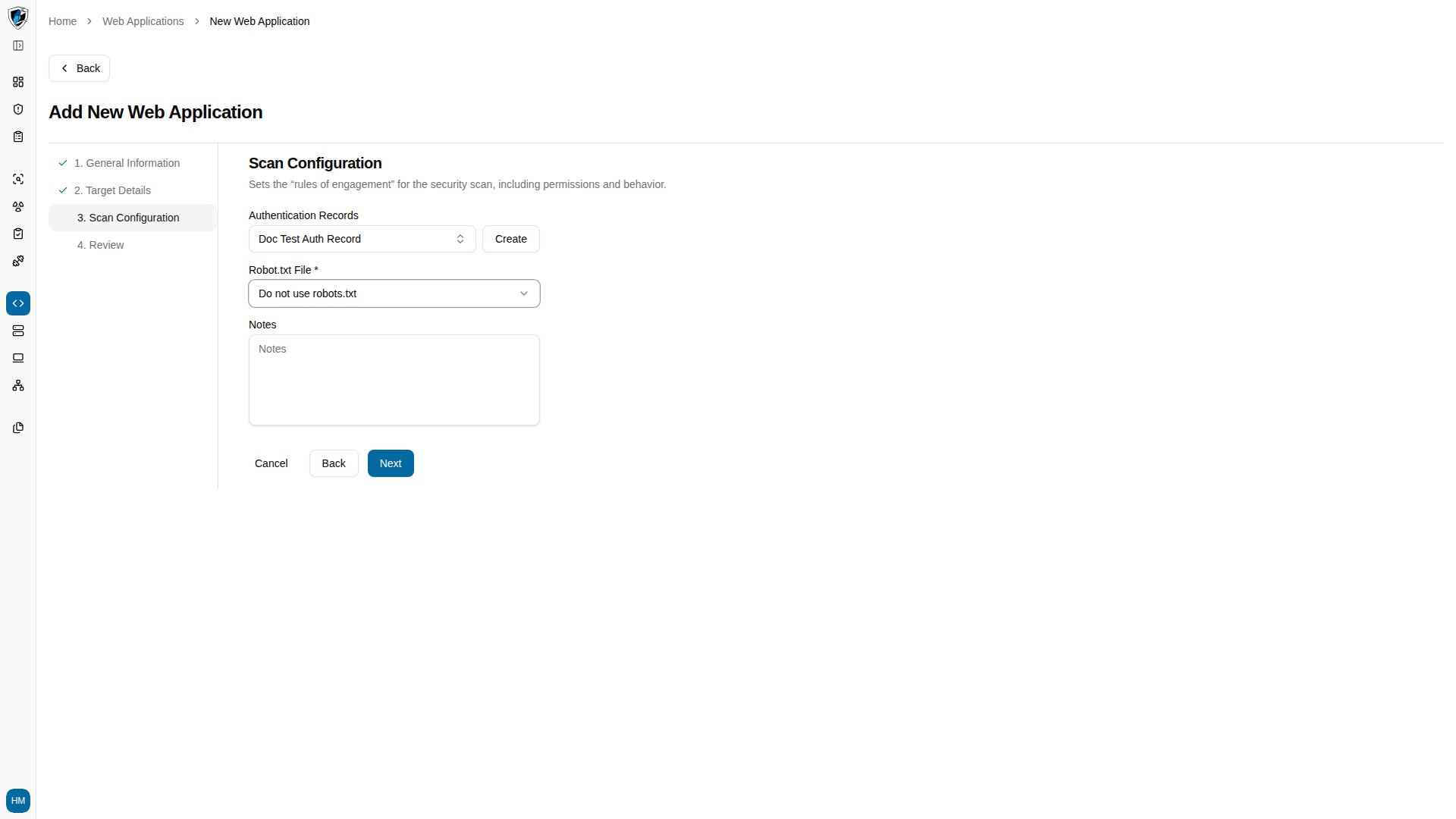
Click **Next** to reach scan configuration:
| Field | Required | Notes |
| :------------------------- | :------- | :-------------------------------------------------------------------------------------------------------------------------- |
| **Authentication Records** | No | Select existing credentials, or click **Create** to define new ones inline. |
| **Robots.txt** | Yes | Whether the scanner respects or ignores the site's `robots.txt` rules. Empty submit returns `Robot.txt option is required`. |
## Step 3: Scan configuration
Click **Next** to reach scan configuration:
| Field | Required | Notes |
| :------------------------- | :------- | :-------------------------------------------------------------------------------------------------------------------------- |
| **Authentication Records** | No | Select existing credentials, or click **Create** to define new ones inline. |
| **Robots.txt** | Yes | Whether the scanner respects or ignores the site's `robots.txt` rules. Empty submit returns `Robot.txt option is required`. |
 ### Creating an auth record inline
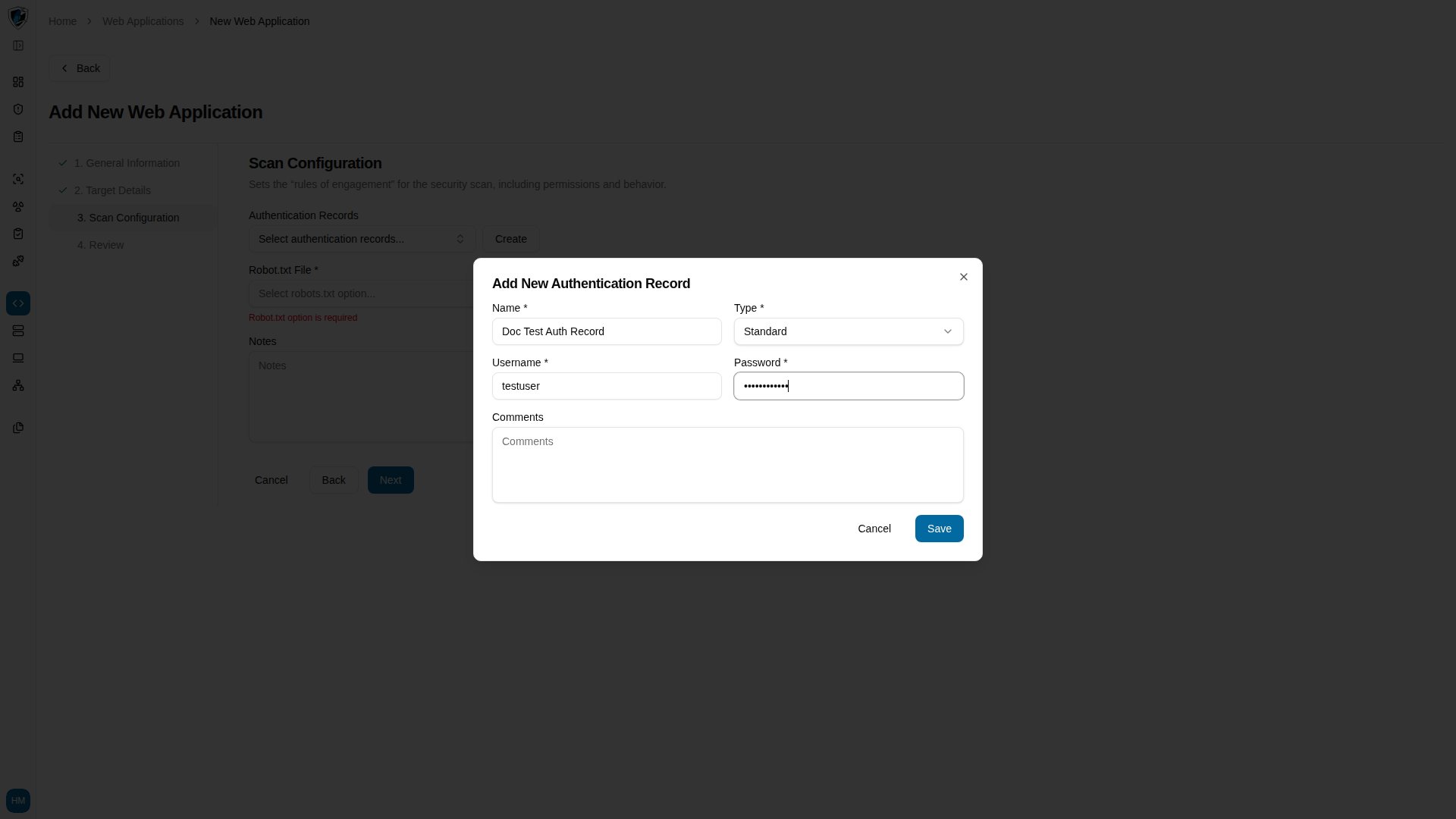
Clicking **Create** in the Authentication Records section opens the **Add New Authentication Record** dialog:
* **Name** *(required)* — identifies the credential set. Empty submit returns `Name is required`.
* **Type** *(required)* — the authentication method, such as *Standard*, *Selenium Script*, or *Header Authentication*. Empty submit returns `Type is required`.
* **Username** and **Password** — required when *Standard* is selected.
Click **Save**. The record is created and attached to the web application you are setting up.
### Creating an auth record inline
Clicking **Create** in the Authentication Records section opens the **Add New Authentication Record** dialog:
* **Name** *(required)* — identifies the credential set. Empty submit returns `Name is required`.
* **Type** *(required)* — the authentication method, such as *Standard*, *Selenium Script*, or *Header Authentication*. Empty submit returns `Type is required`.
* **Username** and **Password** — required when *Standard* is selected.
Click **Save**. The record is created and attached to the web application you are setting up.
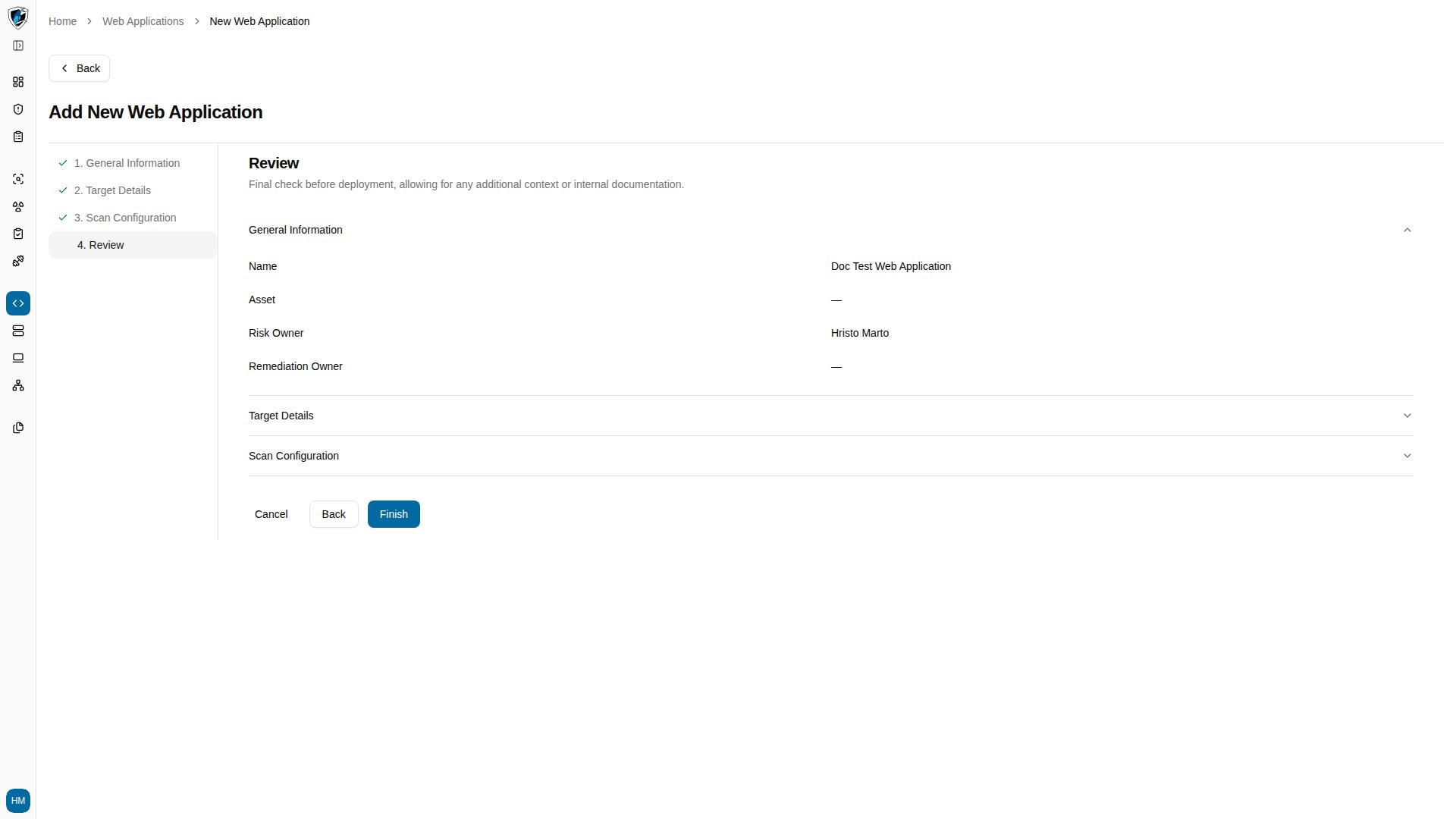
 ## Step 4: Review
Check the summary across General Information, Target Details, and Scan Configuration, then click **Finish** to save and provision the web application.
## Step 4: Review
Check the summary across General Information, Target Details, and Scan Configuration, then click **Finish** to save and provision the web application.