> ## Documentation Index
> Fetch the complete documentation index at: https://docs.kikimora.io/llms.txt
> Use this file to discover all available pages before exploring further.

# Working with checklists

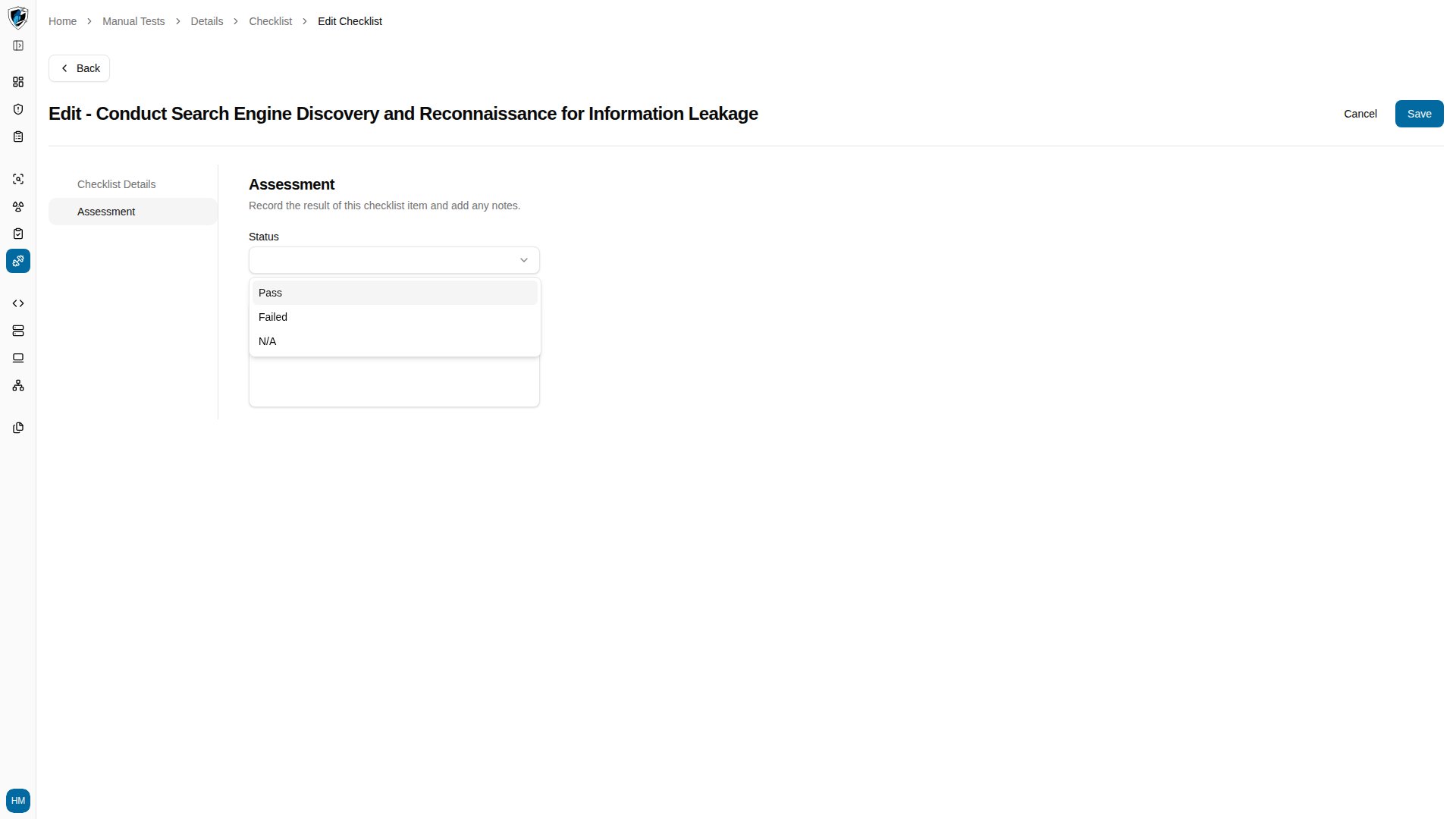
> Open a manual test's checklist, inspect individual checks, and record a Pass, Failed, or N/A assessment against each one.

A checklist turns a manual test into a set of discrete security checks you can work through and mark off.

## Check statuses

| Status     | Meaning                                              |
| :--------- | :--------------------------------------------------- |
| **Pass**   | The check passed without issues.                     |
| **Failed** | A security failure or non-compliance was identified. |
| **N/A**    | The check does not apply to the current scope.       |

## Update a check

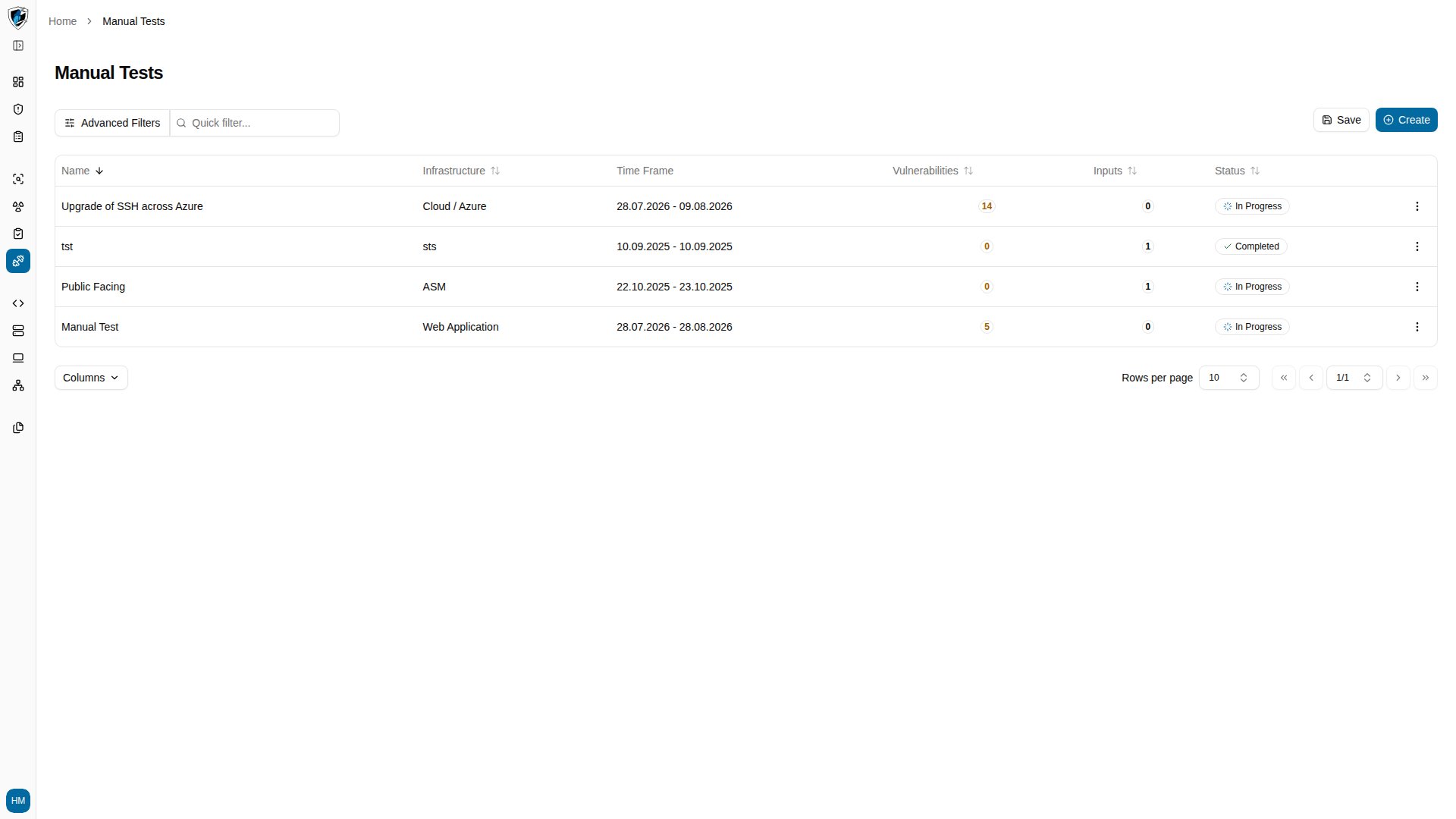
1. Open **Manual Tests** from the sidebar and select a test from the list, such as *Upgrade of SSH across Azure*.
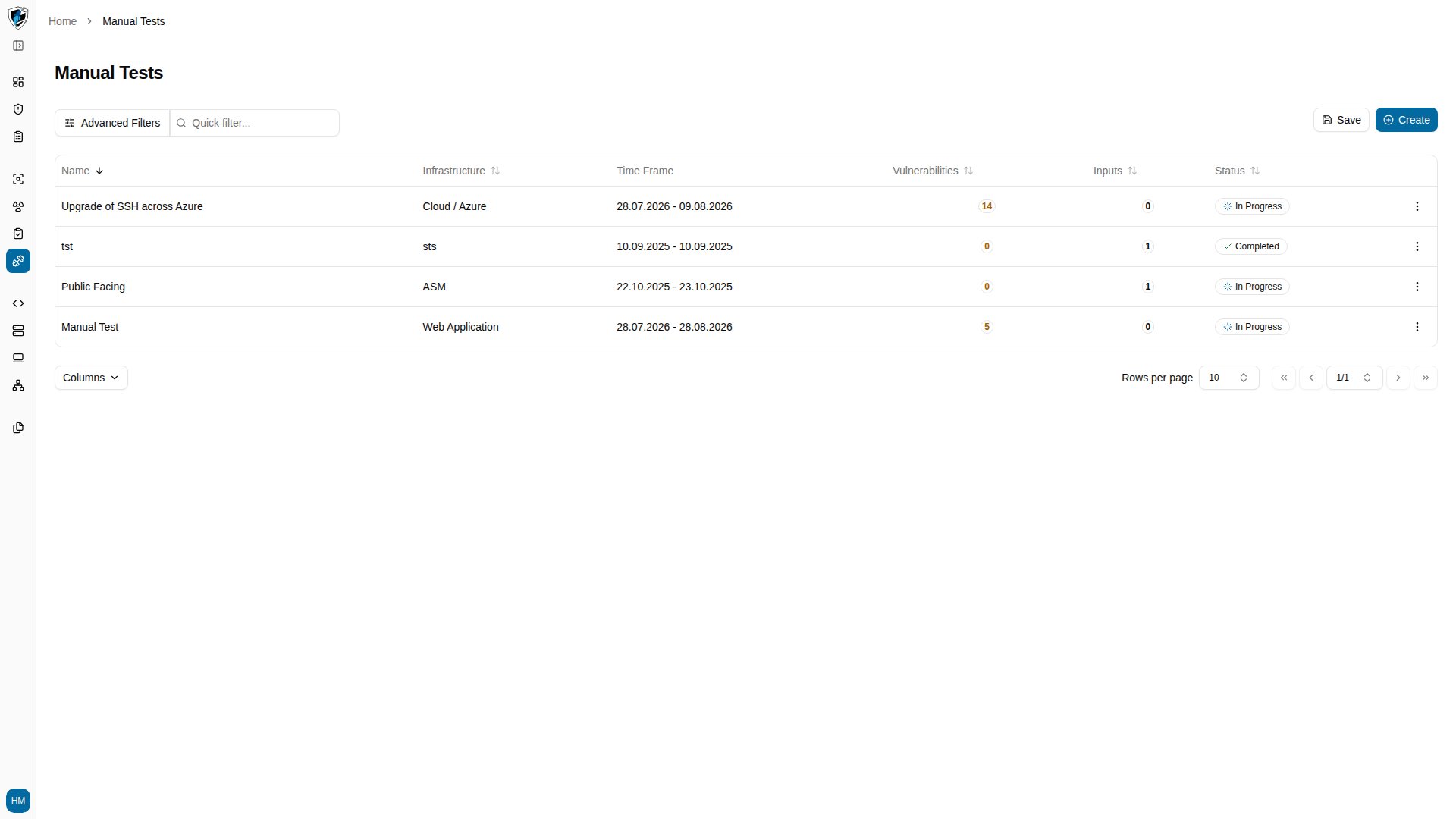
   <img src="https://mintcdn.com/kikimora/_61TKijx1WdBSLGY/images/manual-tests/working-with-checklists--01--select-manual-test.png?fit=max&auto=format&n=_61TKijx1WdBSLGY&q=85&s=e4391e63d4d4d3b8ecc9b020586d2159" alt="Manual Tests list with individual test engagements" width="1920" height="1080" data-path="images/manual-tests/working-with-checklists--01--select-manual-test.png" />

2. Switch to the **Checklist** tab to see every structured security check attached to the test.
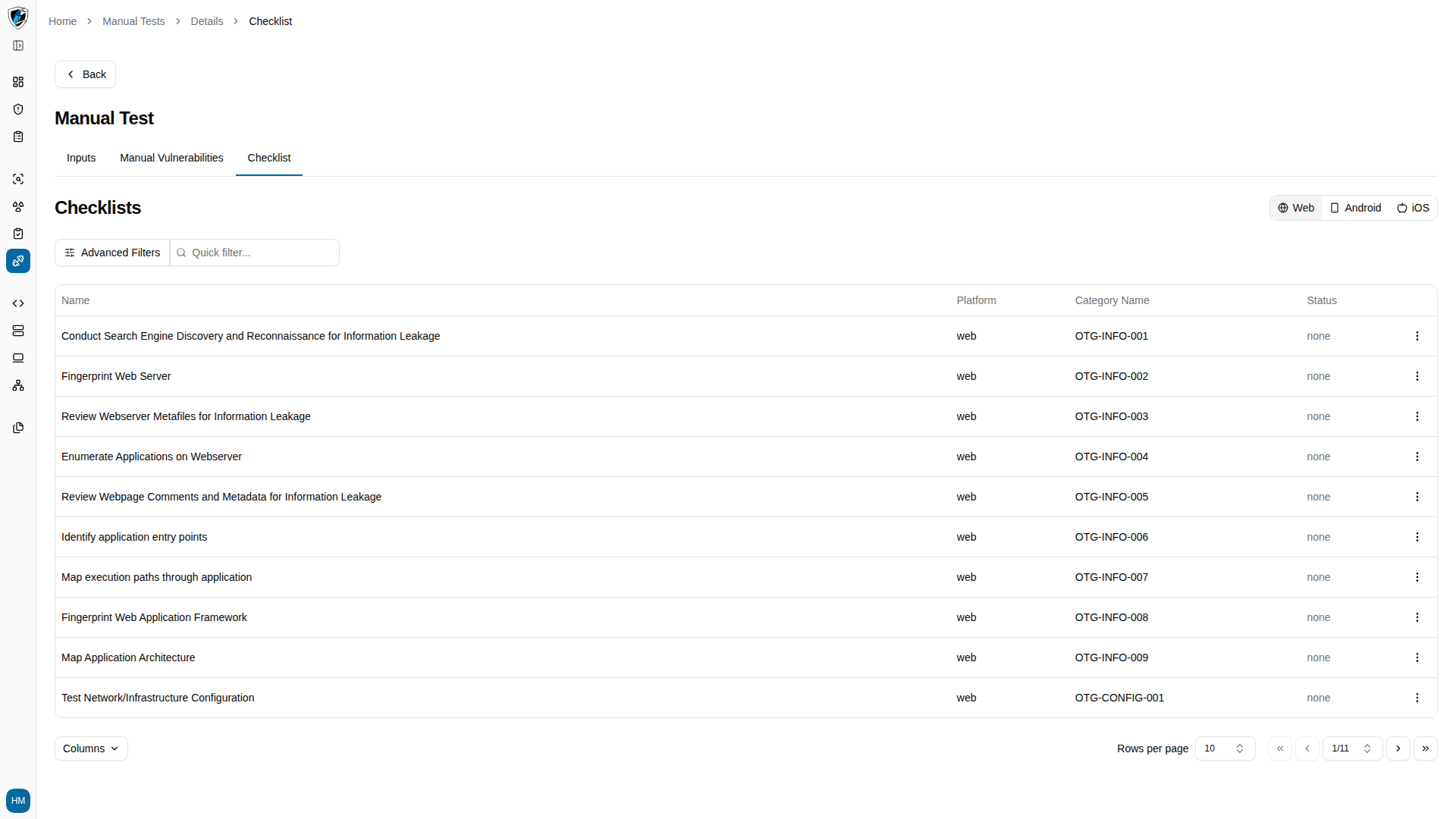
   <img src="https://mintcdn.com/kikimora/_61TKijx1WdBSLGY/images/manual-tests/working-with-checklists--02--checklist-tab-overview.png?fit=max&auto=format&n=_61TKijx1WdBSLGY&q=85&s=8465e2b2c7b86136389e42eb566ac716" alt="Checklist tab listing the security checks associated with the manual test" width="1920" height="1080" data-path="images/manual-tests/working-with-checklists--02--checklist-tab-overview.png" />

3. Click the action menu (`...`) at the right end of the check row you want to work on.
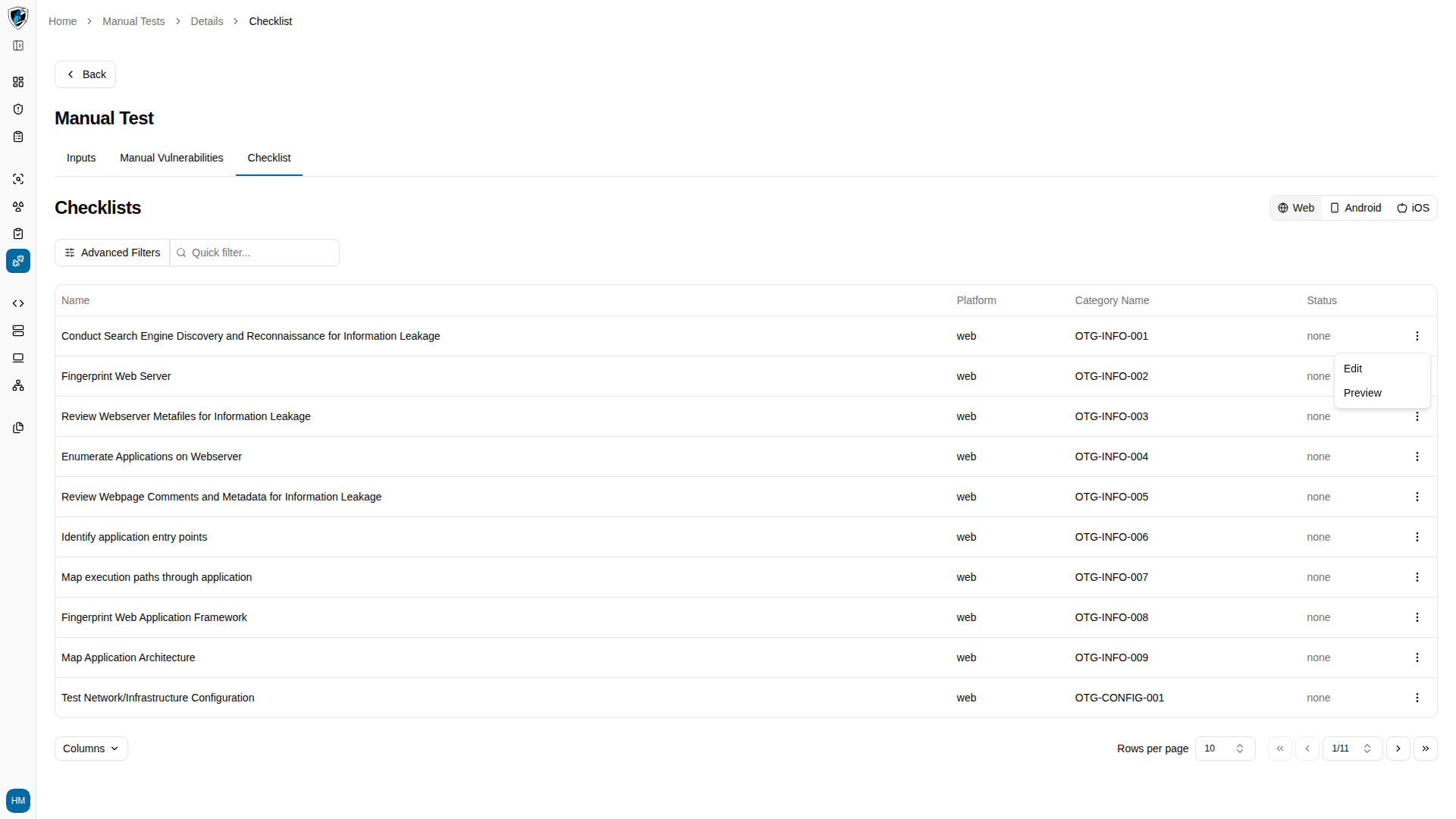
   <img src="https://mintcdn.com/kikimora/_61TKijx1WdBSLGY/images/manual-tests/working-with-checklists--03--open-checklist-item-menu.png?fit=max&auto=format&n=_61TKijx1WdBSLGY&q=85&s=46439c3416b89070a72ebd9723a37d69" alt="Action menu open on a checklist row" width="1920" height="1080" data-path="images/manual-tests/working-with-checklists--03--open-checklist-item-menu.png" />

4. Select **Edit** to open the check, which has two tabs: **Checklist Details** and **Assessment**.
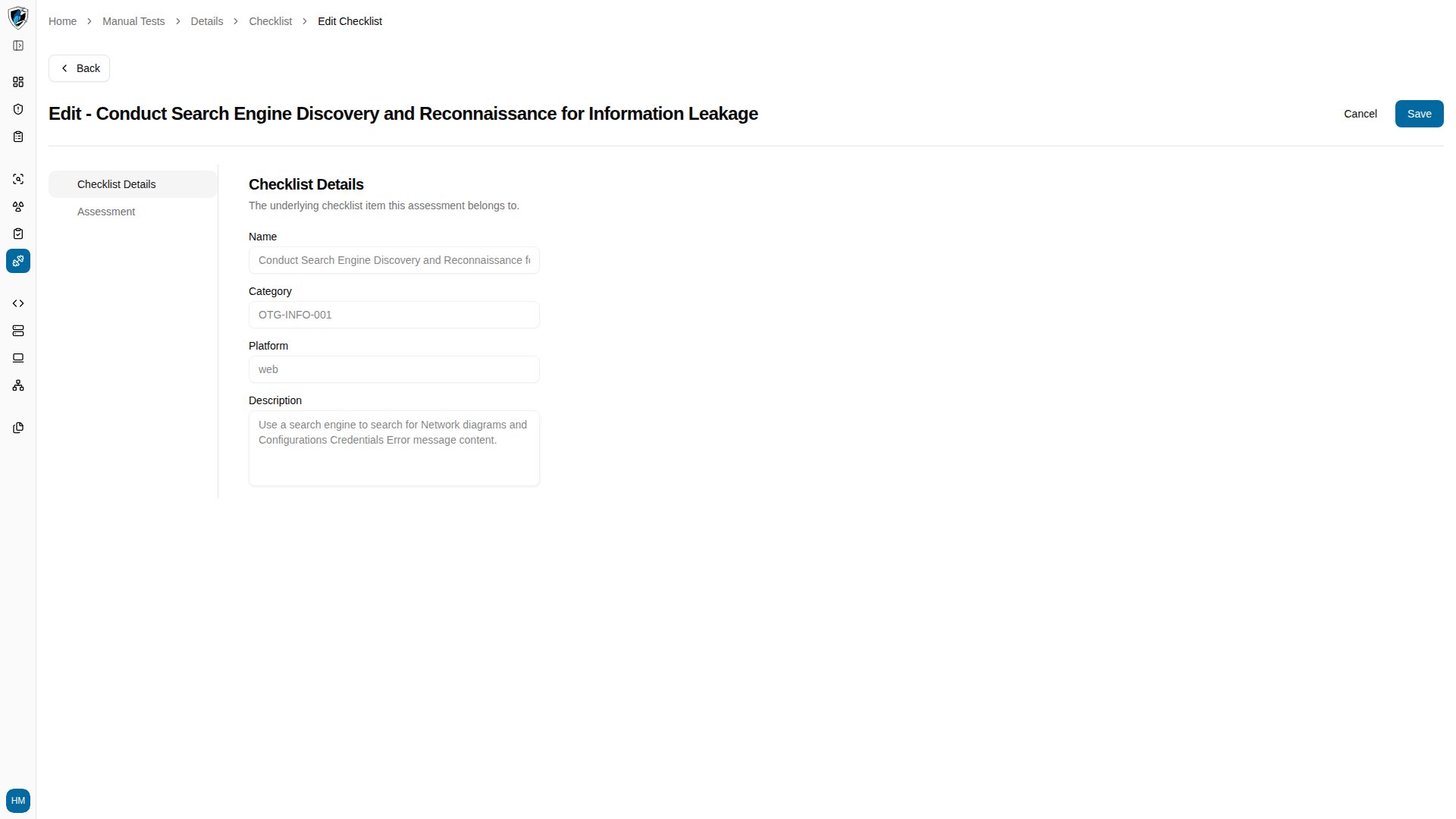
   <img src="https://mintcdn.com/kikimora/_61TKijx1WdBSLGY/images/manual-tests/working-with-checklists--04--edit-checklist-item-details.png?fit=max&auto=format&n=_61TKijx1WdBSLGY&q=85&s=f16d1c246bb77427436a9fcd52fb15eb" alt="Checklist item detail view showing the Checklist Details and Assessment tabs" width="1920" height="1080" data-path="images/manual-tests/working-with-checklists--04--edit-checklist-item-details.png" />

5. Switch to the **Assessment** tab and click the **Status** combobox to record your evaluation.
   <img src="https://mintcdn.com/kikimora/_61TKijx1WdBSLGY/images/manual-tests/working-with-checklists--05--assessment-status.png?fit=max&auto=format&n=_61TKijx1WdBSLGY&q=85&s=cca65ede961bbcf484fb9a8c4f349acc" alt="Assessment tab with the status combobox open on the Pass, Failed, and N/A options" width="1920" height="1080" data-path="images/manual-tests/working-with-checklists--05--assessment-status.png" />

6. Click **Back** at the top left of the header to return to the Manual Tests list.
   <img src="https://mintcdn.com/kikimora/_61TKijx1WdBSLGY/images/manual-tests/working-with-checklists--06--back-to-manual-tests.png?fit=max&auto=format&n=_61TKijx1WdBSLGY&q=85&s=eea41400d001a3c81aaee7f81653714a" alt="Manual Tests list reached from the Back button" width="1920" height="1080" data-path="images/manual-tests/working-with-checklists--06--back-to-manual-tests.png" />
