> ## Documentation Index
> Fetch the complete documentation index at: https://docs.kikimora.io/llms.txt
> Use this file to discover all available pages before exploring further.
# Adding approved software
> Register applications on the approved list one at a time through the Create New wizard, or in bulk by uploading a CSV.
There are two ways to register approved applications: the **Create New** wizard for a single entry, or **Upload CSV File** for bulk import.
## Create New wizard
The wizard at `/compliance/software/new` takes two steps.
**Step 1: Details**
* **Software Name** *(required)* — the official name of the application. Leaving it blank returns `Name is required`.
* **Version** *(optional)* — the exact application version.
* **Compare by name and version** *(checkbox)* — when enabled, a match requires both the name and the version to agree.
**Step 2: Review** summarizes what you entered for a final check before creation.
## Upload CSV
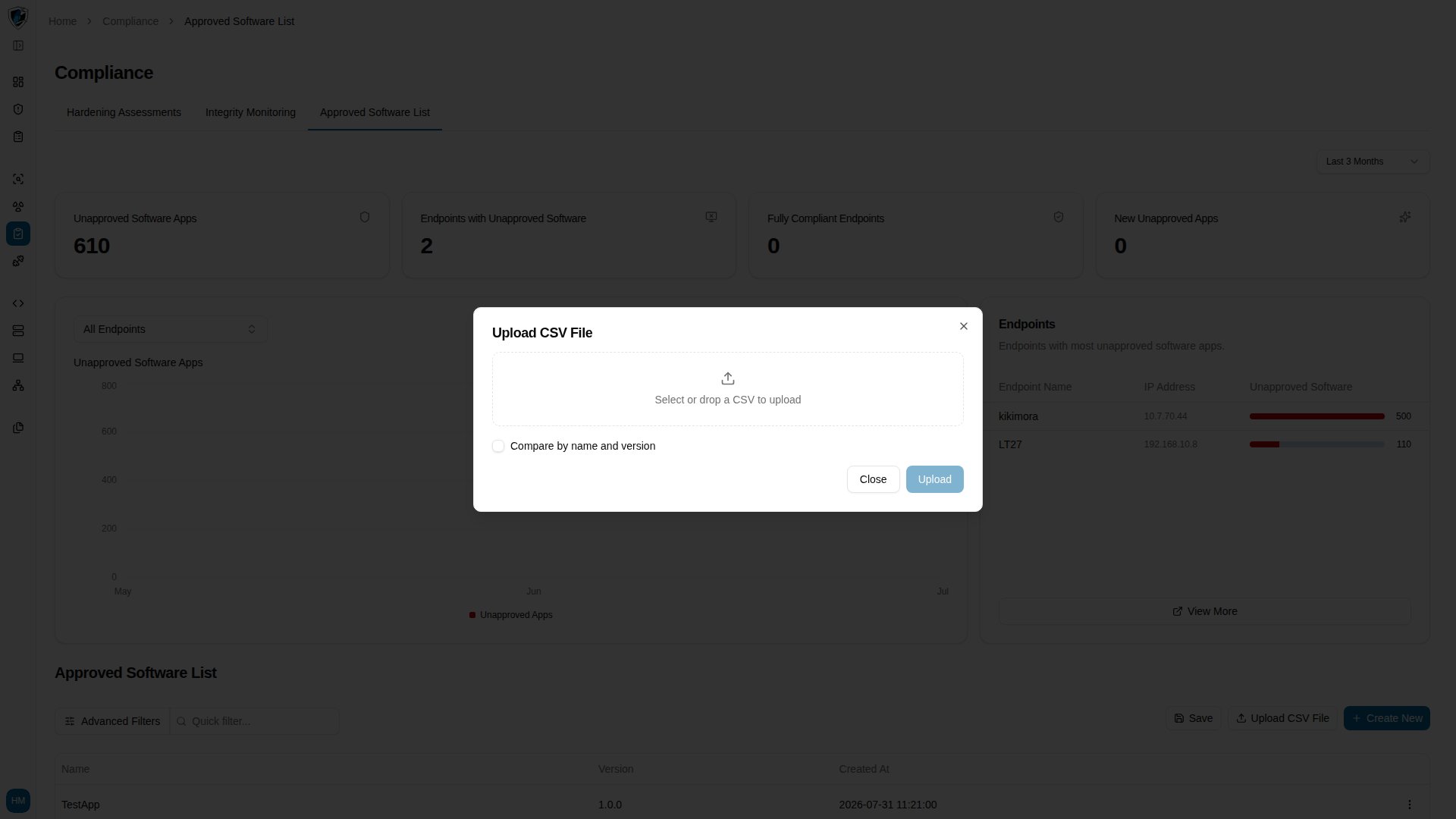
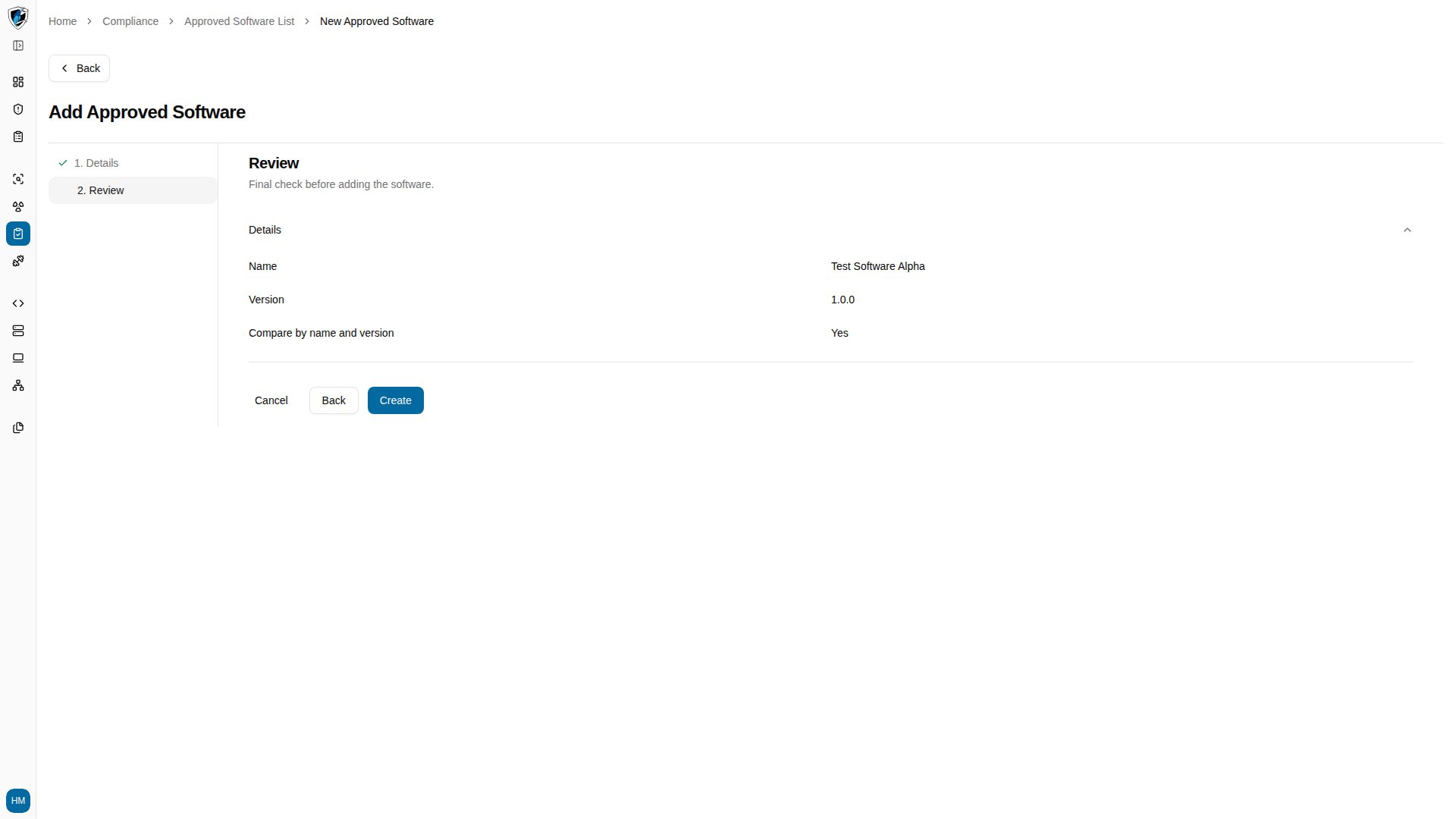
The **Upload CSV File** dialog registers many entries at once:
* **File input** — accepts `.csv` files (`text/csv`).
* **Expected format** — columns for the application name and an optional version, such as `Name` and `Version`.
* **Matching option** — the same **Compare by name and version** checkbox, applied to every imported record.
## Add a single entry
1. Click **Create New** on the Approved Software List page to open the wizard.
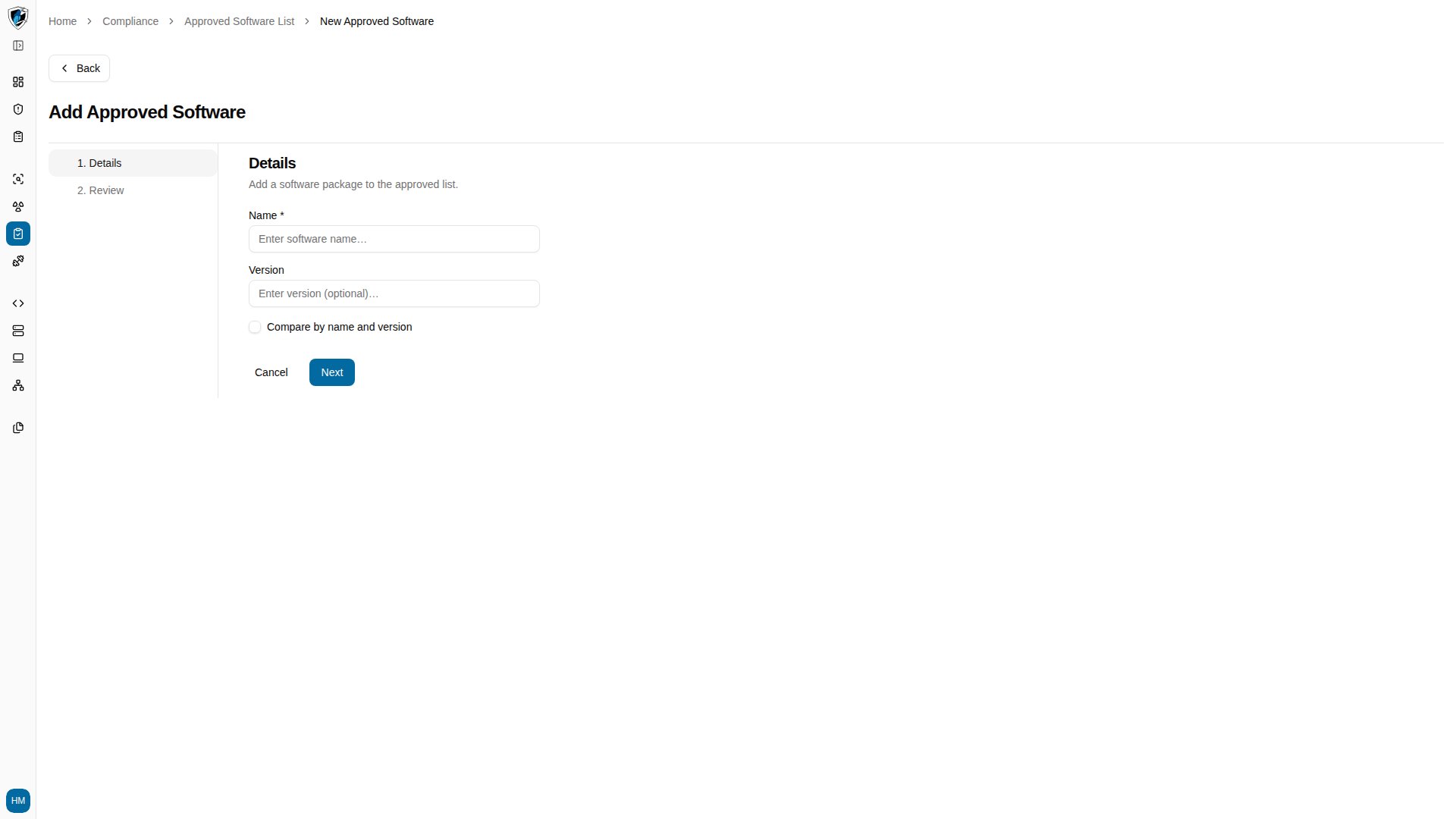 2. If you click **Next** without a software name, the inline error `Name is required` appears.
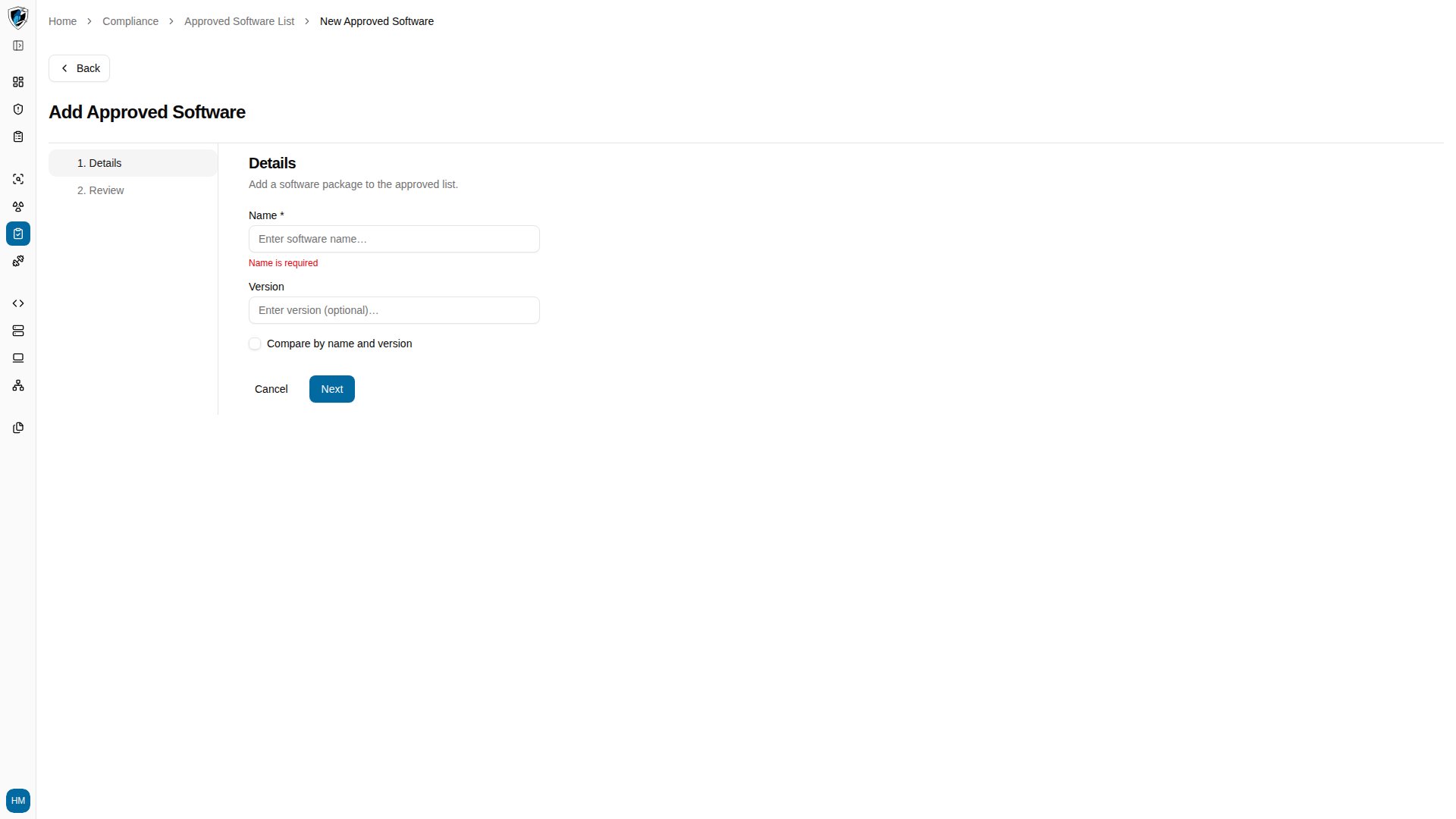 3. Enter a valid name and version, continue to step 2, and click **Create**.
 ## Add entries in bulk
Click **Upload CSV File** in the table header to open the bulk upload dialog.
## Add entries in bulk
Click **Upload CSV File** in the table header to open the bulk upload dialog.